

One Keystroke Does Everything - A Guide To Raycast
Raycast Setup Guide

The Digital Curbside. Practical technology guides for physicians, by a physician.
Part 9.
Most of the tools I write about solve one big problem. This one solves a hundred tiny ones. Raycast is the single keystroke I hit more than any other all day, and once it is set up it quietly runs the small mechanics of my computer - the app switching, the window juggling, the same paragraph I retype forty times a week, the thing I copied two minutes ago and already lost. It is the closest thing in spirit to Wispr Flow from a few issues back, a system layer you drop into constantly without thinking about it. And the best part is that the pieces most useful to a physician are completely free.
What Raycast Is
Raycast is a command bar you summon with a keyboard shortcut. If you are on a Mac, think of the Spotlight search box that opens when you press Command and Space, except far more capable. It is really five tools in one - a launcher (open any app or file instantly), a clipboard history (everything you have copied recently, not just the last thing), a window manager (snap windows around with a keystroke), a snippet expander (short text shortcuts that balloon into full phrases), and an optional AI assistant.
It opens instantly, it now runs on both Mac and Windows, and the core is free forever. There is a paid Pro tier at about eight dollars a month that adds built-in AI, but you may not even need it, since you already have Claude and Gemini for the heavy lifting. Everything I am about to show you that matters most is in the free version.
Setting It Up
This is a five-minute setup, and there is nothing technical about it.
Step 1: Download and install it.
Go to raycast.com, download the app, and install it like any other program.
https://www.raycast.com/
Step 2: Make it your main hotkey.
Open Raycast’s settings and set the trigger to the same shortcut you already use out of habit. On a Mac that is Command (⌘) and Space bar, the old Spotlight shortcut, so Raycast opens exactly where your fingers already go. It will default as Option and Space bar, but you can change this in settings (below). Raycast will offer to turn off the old Spotlight shortcut for you so there is no conflict (Raycast Hotkey setting below, under Settings → General). Do that when you first launch it.
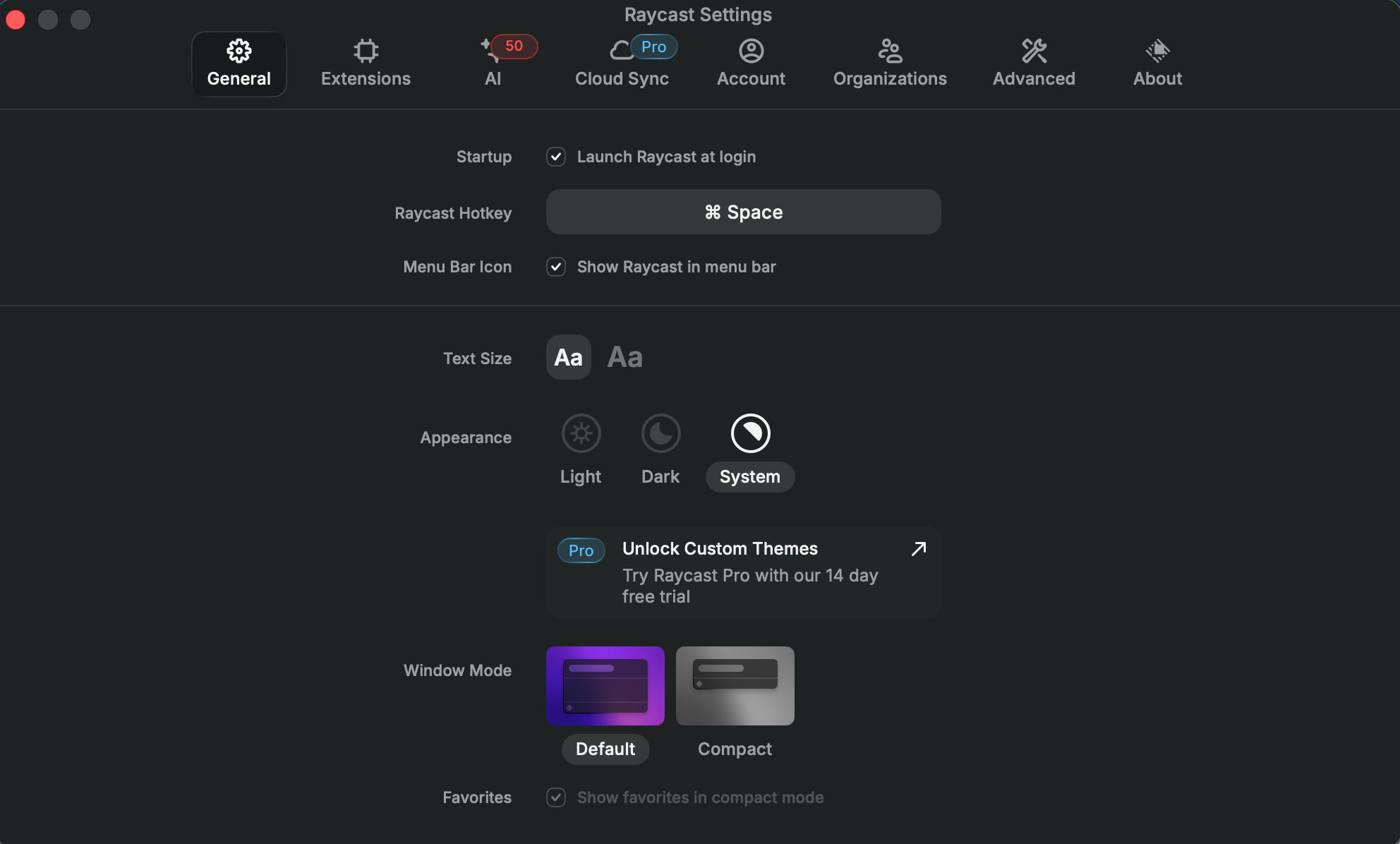
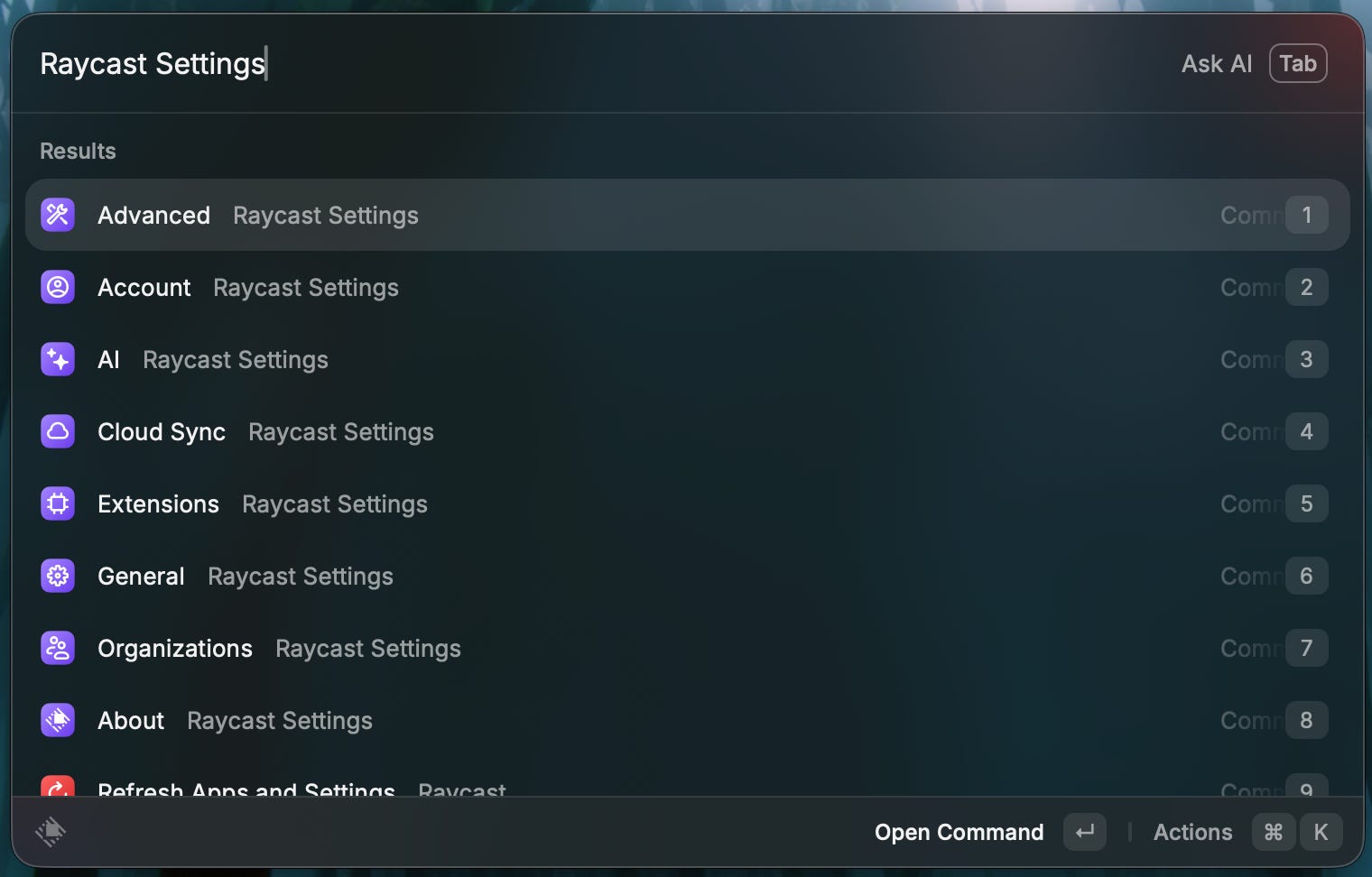
If you skipped anything by accident during the setup, launch Raycast and search “Raycast Settings” and click on “Advanced” to pull it up again.
Step 3: That is genuinely it.
Hit the hotkey and the bar appears. Everything below lives behind that one keystroke, and within a day it becomes muscle memory.
The Features You’ll Use Every Day
1. Snippets, the one that will change your day.
A snippet is a short trigger you type that instantly expands into a full block of text, anywhere on your computer, in any text field. If you use Epic, think of SmartPhrases or dot-phrases, except these work everywhere - in your email, in a browser, in a text message, and in most EMR text boxes, not just inside one system. They are also much more customizable and you can use them anywhere.

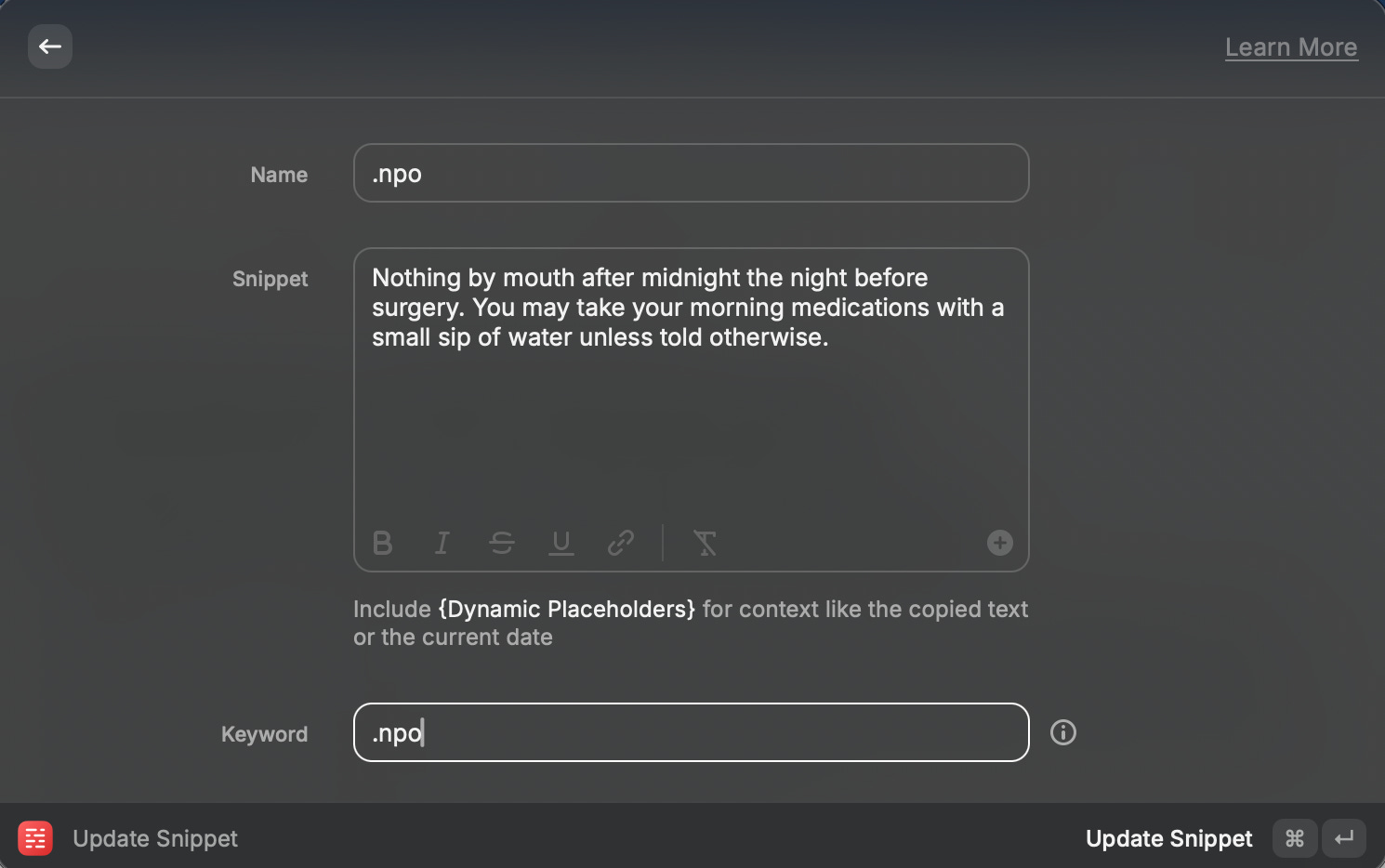
You set them up once in Raycast. Search for “Create Snippet” to bring up the snippet creation tool below.
For example, you define the trigger ‘.npo’ to expand into “Nothing by mouth after midnight the night before surgery. You may take your morning medications with a small sip of water unless told otherwise.”
Type ‘.addr’ and your full office address drops in.
Type ‘.fu’ and “Please follow up in clinic in two weeks, or sooner if you have any concerns.” appears.
These don’t just need to be “dot phrases” - the keyword you create can be anything you want. When you type that anywhere on your computer, it autofills the snippet.
I keep a dozen of these for the paragraphs I write over and over, and they save more time than any other single feature here. One rule - do not put patient-specific information in a snippet. Snippets are for the boilerplate you repeat, never the specifics of a person.
2. Clipboard history.
Normally your computer remembers only the very last thing you copied. Raycast remembers the last many. Copy a lab value, then a name, then a link, and paste any of the three from a searchable list. For anyone who spends the day moving information between two systems, this alone is worth the install. One caution - it stores what you copy, locally on your machine, so if you ever copy something with patient information in it, clear it from the history when you are done. Raycast lets you delete individual entries and set how long it holds onto things.
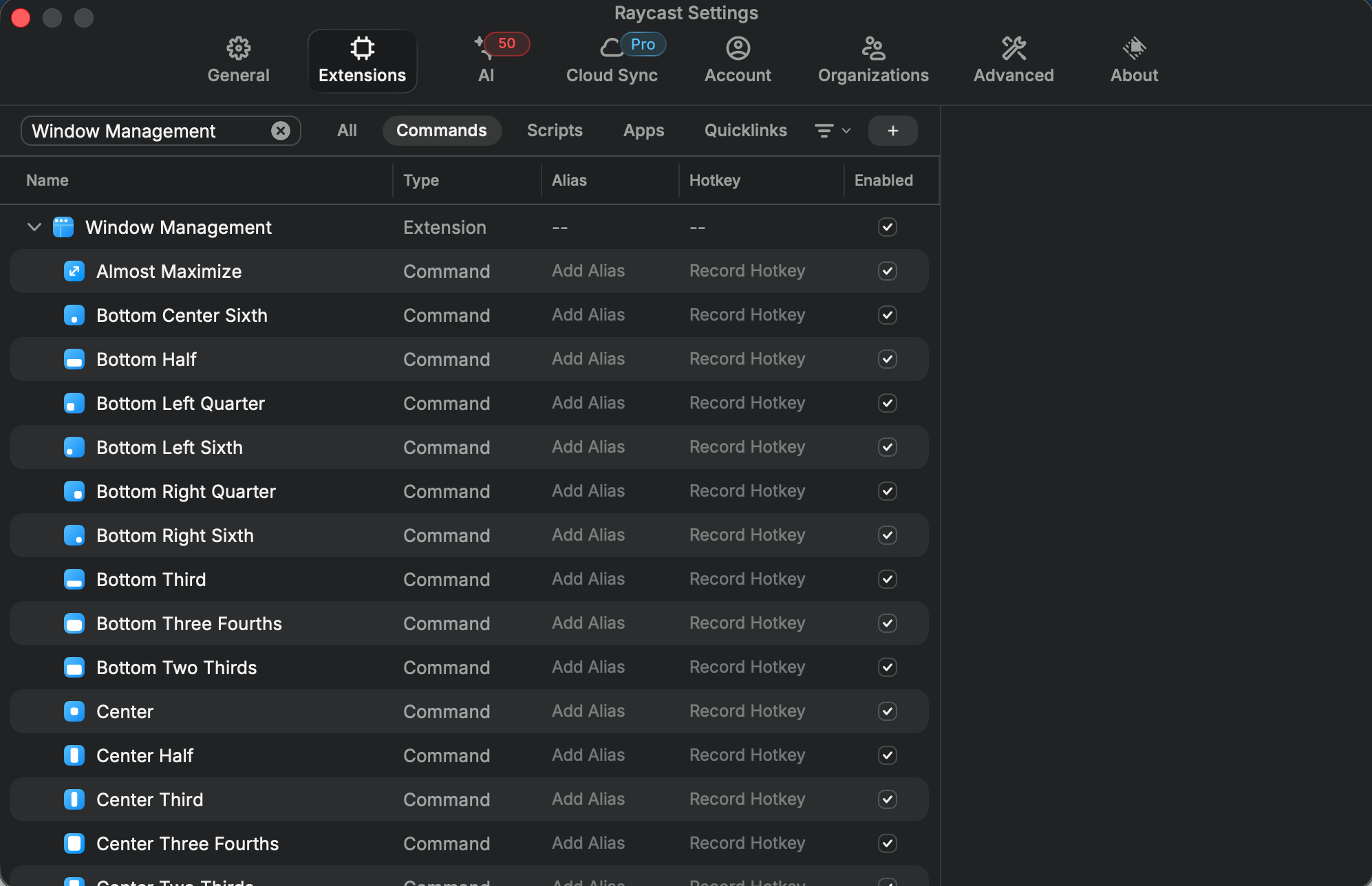
To launch this feature, search for “Clipboard History” - or set up a hotkey/shortcut to pull this up quickly. Mine is just Command (⌘)H. To set up this hotkey, open Raycast settings, and navigate to the second tab called “Extensions.” Then search for “Clipboard” to pull up that command, and then click on “Record Hotkey” → ⌘H to set it up once.
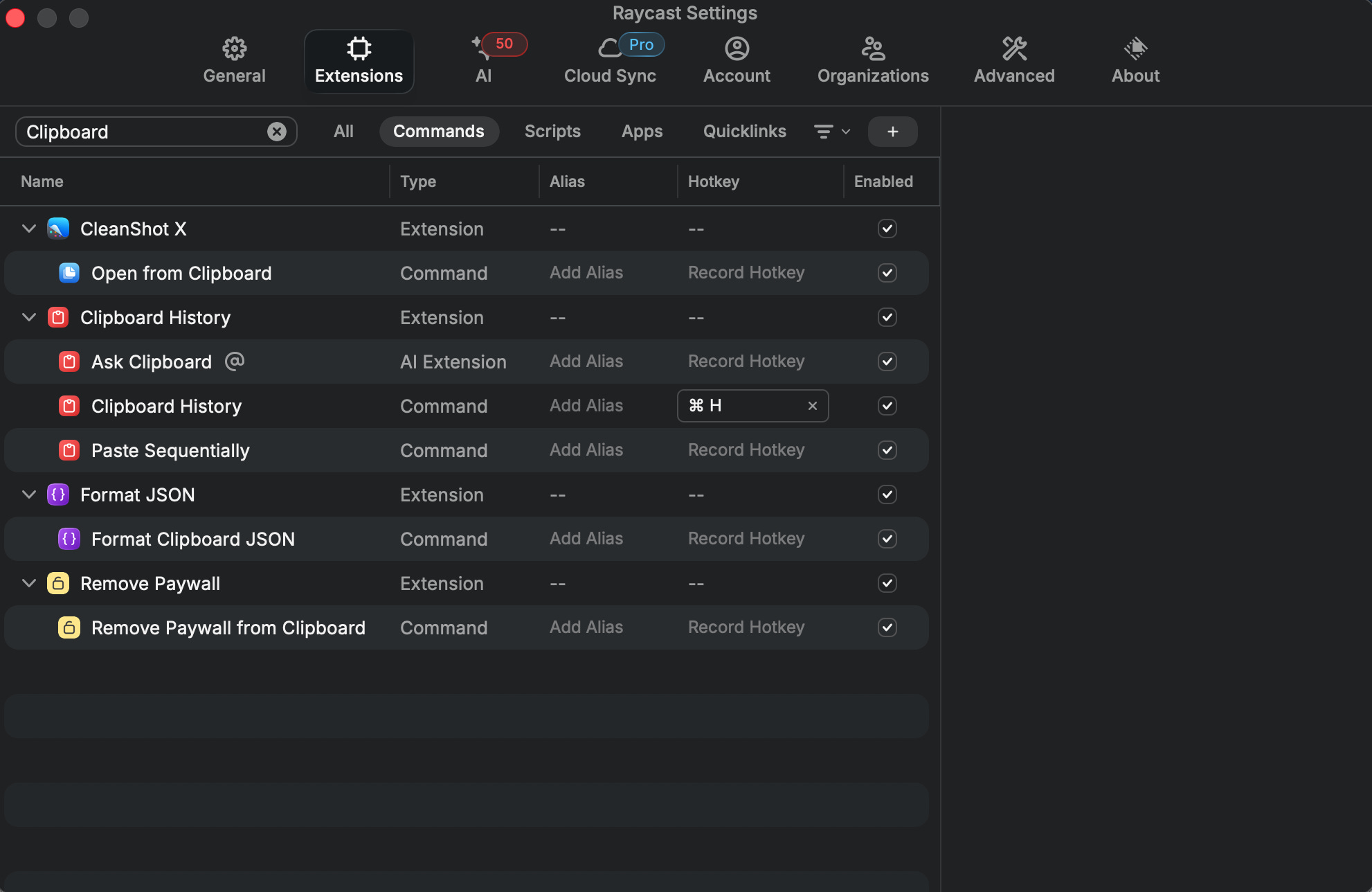
Now just press ⌘H (or whatever you set it up to be), and it pulls up all your copy paste history.
3. Window management.
Snap the window you are in to the left or right half of the screen with a keystroke, so you can put a reference article next to your note, or the EMR next to a PDF, without dragging corners around with the mouse. It is a small thing that you do a hundred times a day, and reclaiming those seconds adds up. You can set these all up as hotkeys the exact same way as we described above.
Quick Note - Patient Data
Two of these features touch text you might not want leaving your control, so it is worth being clear. Snippets are completely safe, because they are your own templates with no patient in them. Clipboard history and the AI tool within Raycast are where the discipline lives. If you are a physician that routinely uses patient information and copy and pastes this regularly, keep the AI tools out of it, and clear anything sensitive out of your clipboard history when you finish. Everything is stored locally, which helps, but the judgment about what you copy and what you paste is still yours.
The Bottom Line
This is not a tool that writes your notes or reasons through a case. It is a tool that deletes the friction between you and everything else on your computer, the retyping, the digging, the dragging. Set up a few snippets and turn on clipboard history this week, and eventually the keystrokes will be automatic and your efficiency will duplicate. It is the least glamorous tool I use, but one of the most effective ones I’ve ever encountered.
© The Digital Curbside. All clinical examples are educational and de-identified. Nothing in this guide constitutes medical advice or clinical decision support.