

Turn Text Into Visuals - Getting Started With Napkin AI
Napkin AI Tutorial

The Digital Curbside. Practical technology guides for physicians, by a physician.
Part 10.
Every physician and surgeon has had this moment, in practice or in life. You have explained something clearly in words - a management algorithm, the difference between reconstruction options, the timeline of a recovery or treatment course - and now you need it as a figure for a slide, a handout, or anything else. So you try to do it in Powerpoint, then you remember that you started reading this guide, so you open Claude and struggle back and forth, not quite getting what you want, and not being able to make direct edits to the text and figures. Napkin AI does that same figure in about ten seconds, from the exact text you already wrote. It is one of the more genuinely effective tools I have found, and there is almost nothing to learn.
What Napkin Is
You paste your text, click one button, and Napkin reads your words and turns them into a clean, editable diagram such as a flowchart, a comparison, a timeline, a process, or a mind map, and more. You do not write a prompt or describe what you want. It figures out the right kind of visual from the writing itself, and it handles the spacing, the color, and the layout for you. It makes more than thirty kinds of visuals, everything is editable after it generates, and you can export straight to PowerPoint, as an image file, or PDF to drop into a slide or a handout. It runs in your browser, so there is nothing to install, and the free tier is very generous (I still haven’t had a need to pay for it yet).
Setting It Up
There is no setup to speak of. This is the whole thing.
Step 1: Go to napkin.ai and sign up or sign in.
Nothing to download, it runs in a normal browser tab.
Step 2: Open a blank napkin and choose your path..
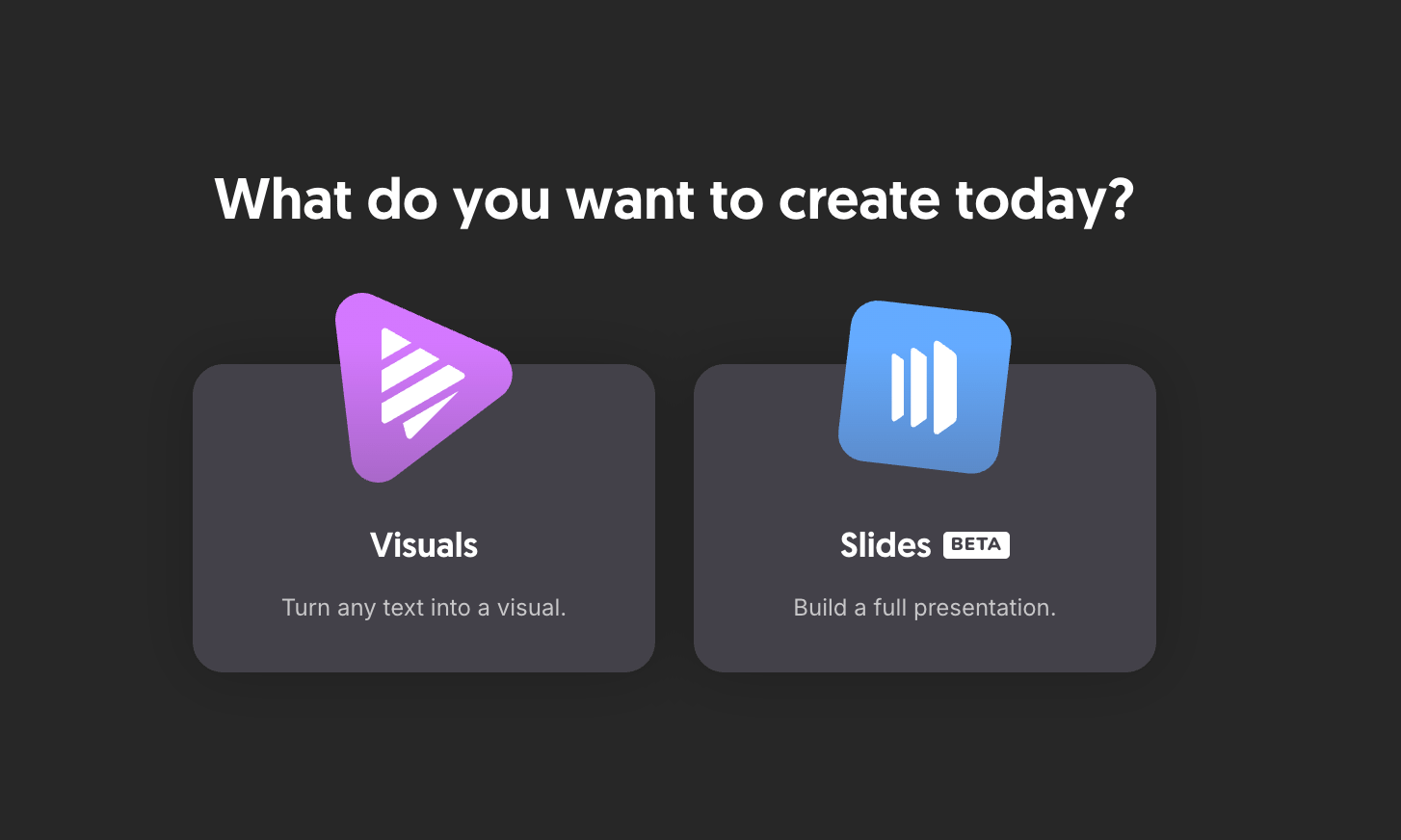
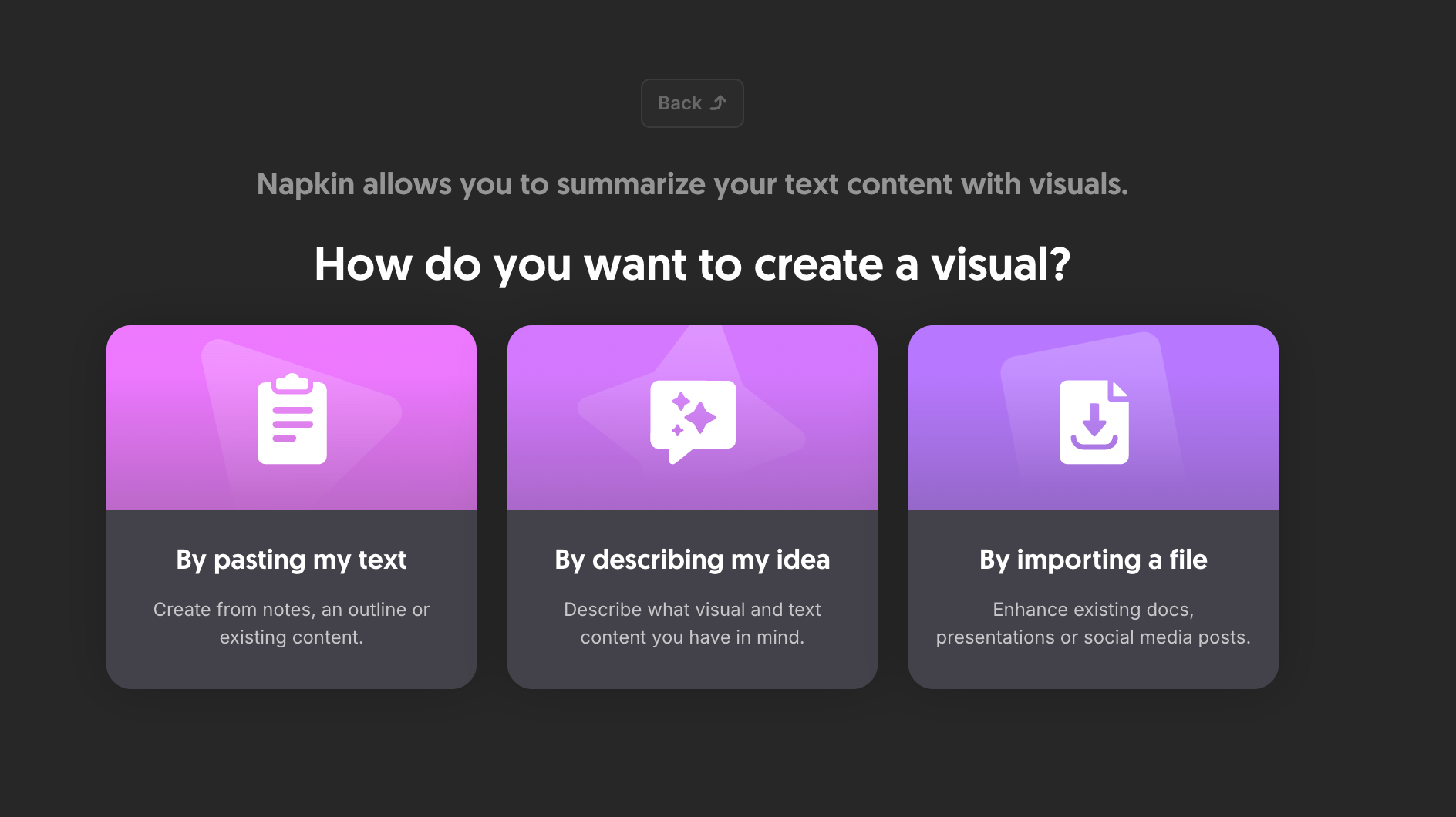
Select the visuals option, paste your text directly, or even just describe what you want, and it will generate the text/outline for you. You can also import a word document or other files that may have your outline or ideas.
Step 4: Prompt by describing your idea.
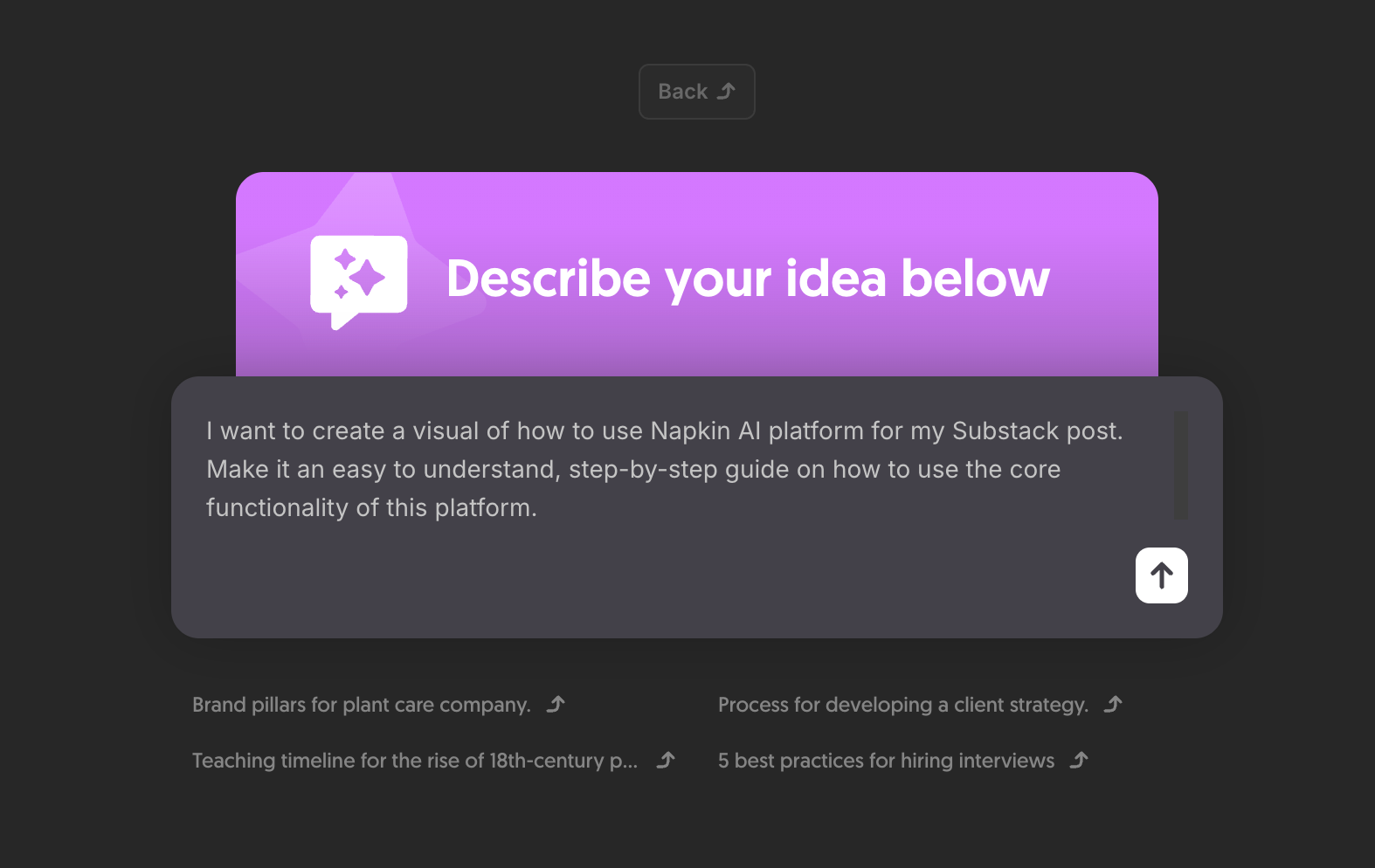
If you choose to use the prompt option, describe what you want as if you were chatting with Claude or another AI a we have previously described. Provide examples in your prompt as well.
Step 4: Click the spark icon and pick a visual.
Your idea will generate as text, and then next to each section, a small spark icon appears next to your text when hovering over it (pictured below). Click it, and Napkin generates a set of visual options built from your words. Choose the one that fits, and it drops onto the canvas ready to edit.
1 - Hover the text block.
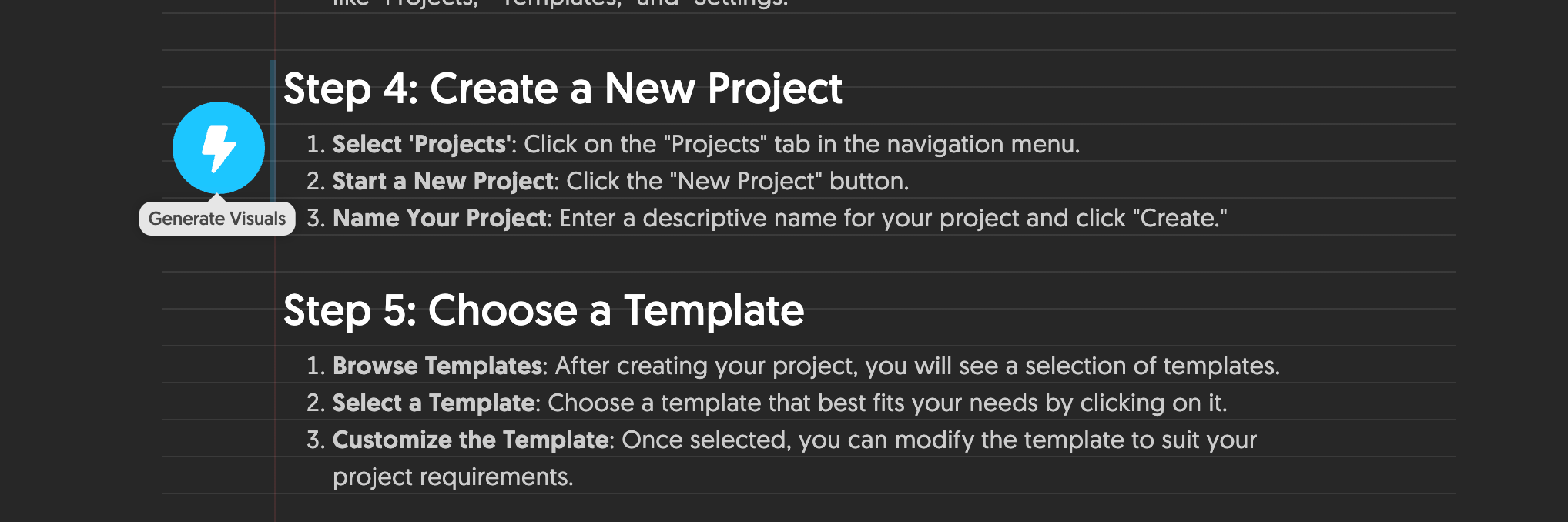
2 - Click on generate visuals, and choose a type and style.
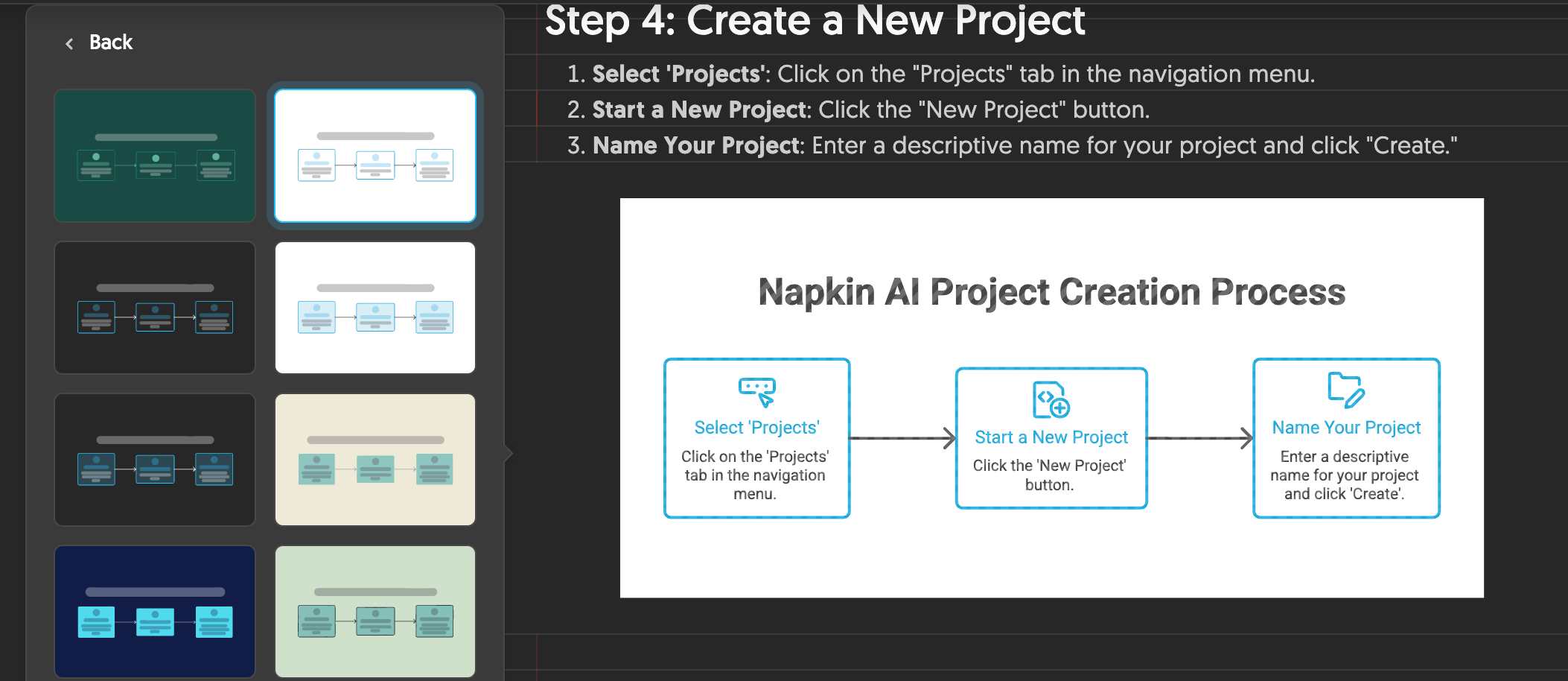
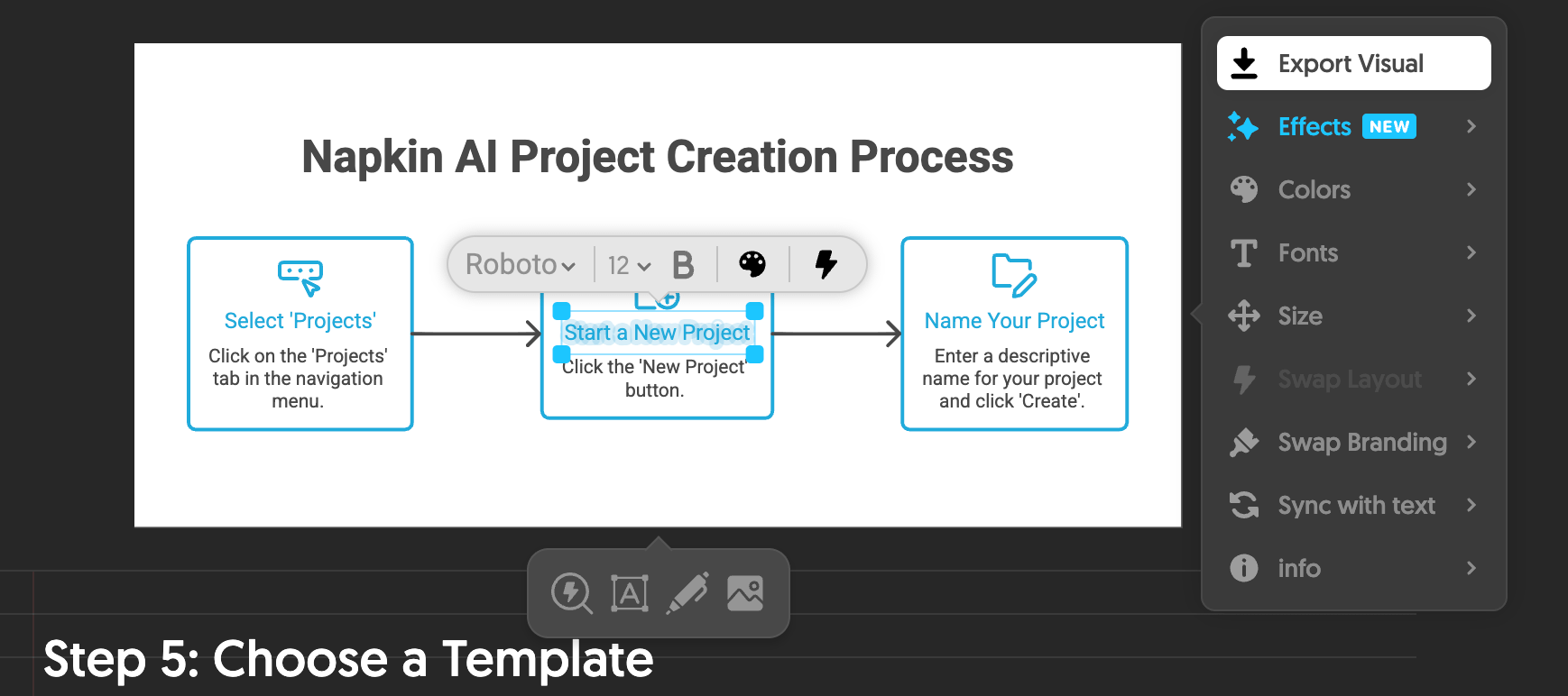
3 - Edit the diagram directly, including the text, colors, etc. as if it was a Powerpoint slide or word doc figure, then export it in any format you’d like.
How To Actually Use It
The one thing worth knowing is that Napkin visualizes what your text actually says, so a little structure in the writing gives a much better figure. Write the concept the way you would explain it out loud, then paste it. A few examples from my own use:
A comparison. Paste a short paragraph comparing three types of options for surgery, with a line on each, and Napkin builds a side-by-side comparison card you could hand a patient or drop into a talk.
An algorithm. Paste your numbered steps for working up a postoperative fever, and it builds a clean flowchart with the branches laid out for you.
Then you edit the labels, nudge the colors to match your slide theme, and export. Ten seconds of generation, a minute of cleanup, and you are done with something that used to eat an hour.
Where It Fails
Here is the catch, and it is the same one that runs through this entire guide every week. Napkin makes a confident, polished figure whether or not the figure is correct. It can mislabel a box, quietly collapse two steps into one, or draw an arrow that implies a relationship your text never claimed, and a wrong diagram in a patient handout or a consent conversation is a polished mistake that looks authoritative. It is a diagram generator, not a medical illustrator, and it has no idea whether the anatomy or the clinical logic is right. Read every label and every arrow before it goes anywhere, exactly the way you would proof a galley. And because you are pasting your text into a web tool, keep patient-identifiable information out of it, de-identified and generic concepts only.
The Bottom Line
Napkin will not know your medicine, but it will hand back the hour you used to lose turning a clear paragraph or idea into a very clear picture. Write the idea in plain words, let it draw the first version, and spend your time on the part that matters, checking that the picture says exactly what you meant. Use your time tweaking, and let AI lay the groundwork. For a physician who teaches, makes handouts, or builds slides, it is one of the highest-joy, lowest-effort tools I have covered.
© The Digital Curbside. All clinical examples are educational and de-identified. Nothing in this guide constitutes medical advice or clinical decision support.